How to Fix QCA6174 Network Card Issues in Manjaro

Opening Remarks
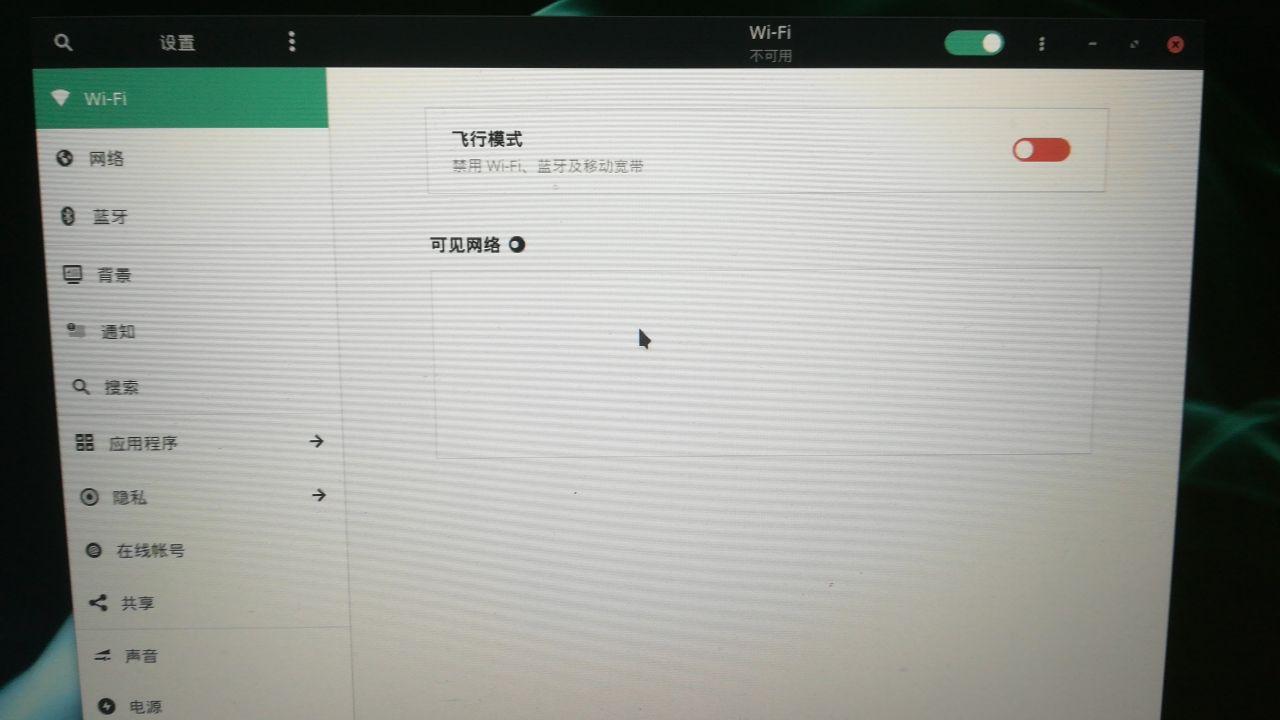
I tried installing Manjaro on a Redmibook 14 and found that WiFi didn’t work after installation.
I was confused — doesn’t Manjaro come with linux-firmware?
After a series of troubleshooting, I eventually solved it. Writing this article to document the process.
Trying Other Methods to Connect to the Network
Since WiFi doesn’t work, I need to find another way to get online, otherwise this problem would be difficult to solve.
What I could think of was plugging in an Ethernet cable, but this is a thin and light laptop — it doesn’t have a wired network card. So there’s another option: USB tethering from a phone.
This process is simple. Follow these steps:
-
Connect your phone to the computer via USB cable and enable USB tethering
If you can’t do this, runsudo rm -rf /With that IQ, why are you even using Linux- If you don’t know how, refer here
-
Open terminal and run:
$ sudo ip linkIt will return something like this:
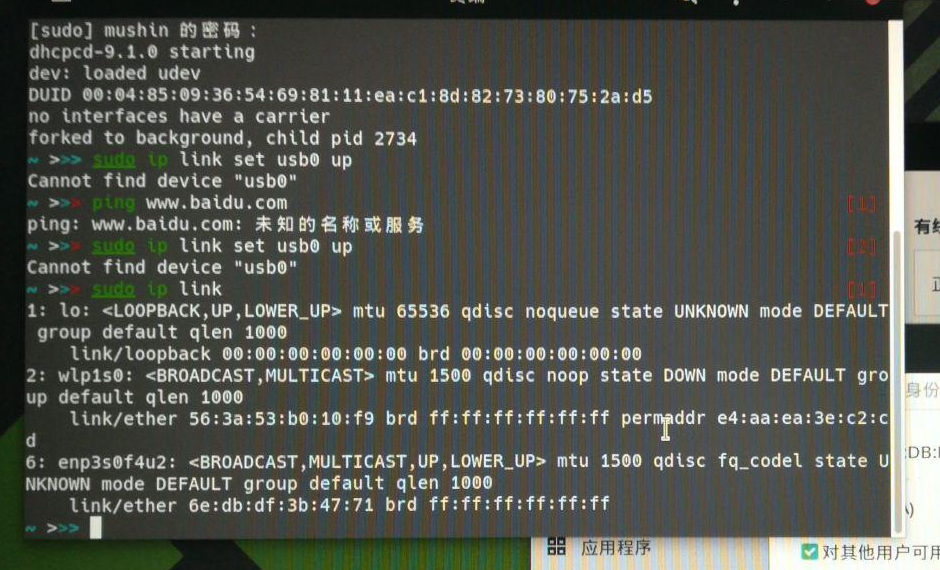
Set up the network interface:
$ sudo ip link set enp3s0f4u2 upRun dhcpcd:
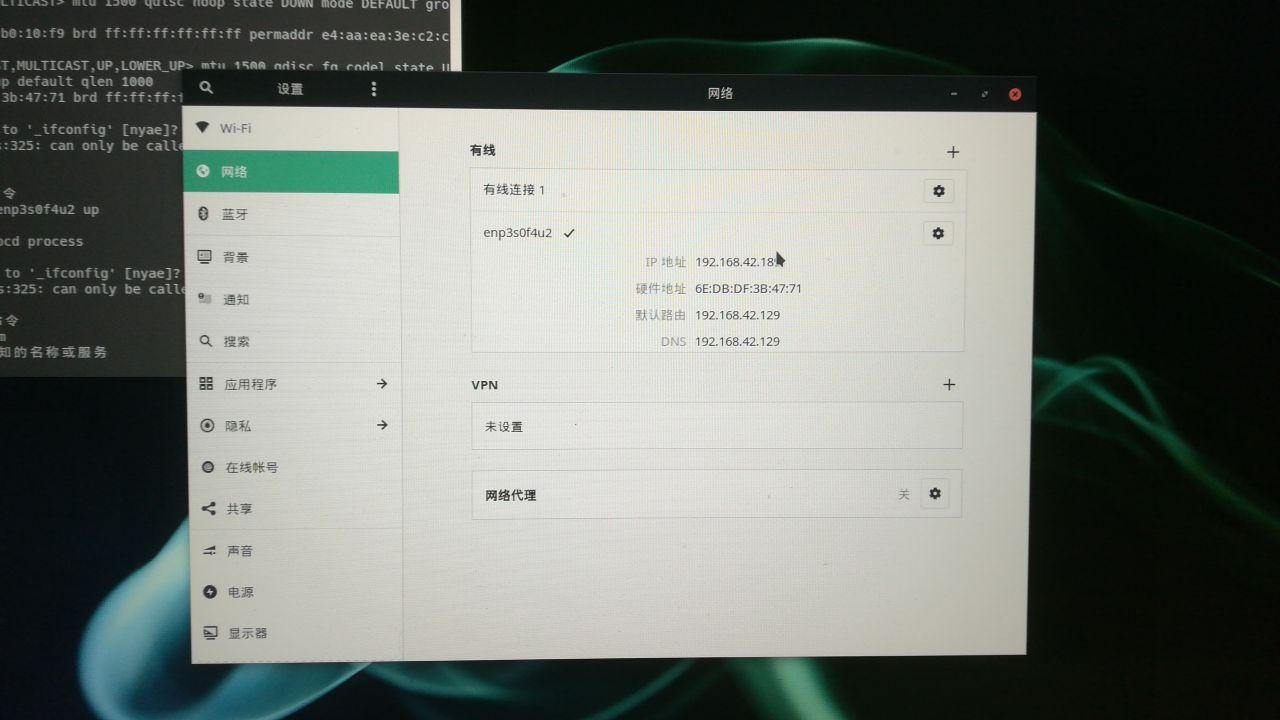
$ sudo dhcpcdNext, I tried running ifconfig, but it wasn’t available. However, I checked the network manager…
Yep, I’m online.
Solution Process
Software Mirrors
We’ll be installing and removing packages, so first we need to select appropriate software mirrors.
OK, the file we need to edit is:
/etc/pacman.d/mirrorlistLet’s edit it with nano. Remember to use sudo:
$ sudo nano /etc/pacman.d/mirrorlistMove the content under # China to the first line.
As for how to use nano, look it up yourself. If you can use Notepad, you can use this.
After editing, it looks like this:

Then run:
$ sudo pacman -Sy
Install linux-firmware
Run:
$ sudo pacman -S linux-firmwareAfter rebooting, it still didn’t work. So I went to Google to investigate.
I found out that we need to manually download the driver files from Github.
Manually Replace Driver Files
Go to the Github repository linked above, download board-2.bin and firmware-4.bin_WLAN.RM.2.0-00180-QCARMSWPZ-1, and rename them to board.bin and firmware-4.bin respectively.
$ wget https://github.com/FireWalkerX/ath10k-firmware/raw/7e56cbb94182a2fdab110cf5bfeded8fd1d44d30/QCA6174/hw3.0/board-2.bin$ wget https://github.com/FireWalkerX/ath10k-firmware/raw/7e56cbb94182a2fdab110cf5bfeded8fd1d44d30/QCA6174/hw3.0/firmware-4.bin_WLAN.RM.2.0-00180-QCARMSWPZ-1Then copy these two files to the /lib/firmware/ath10k/QCA6174/hw3.0/ directory:
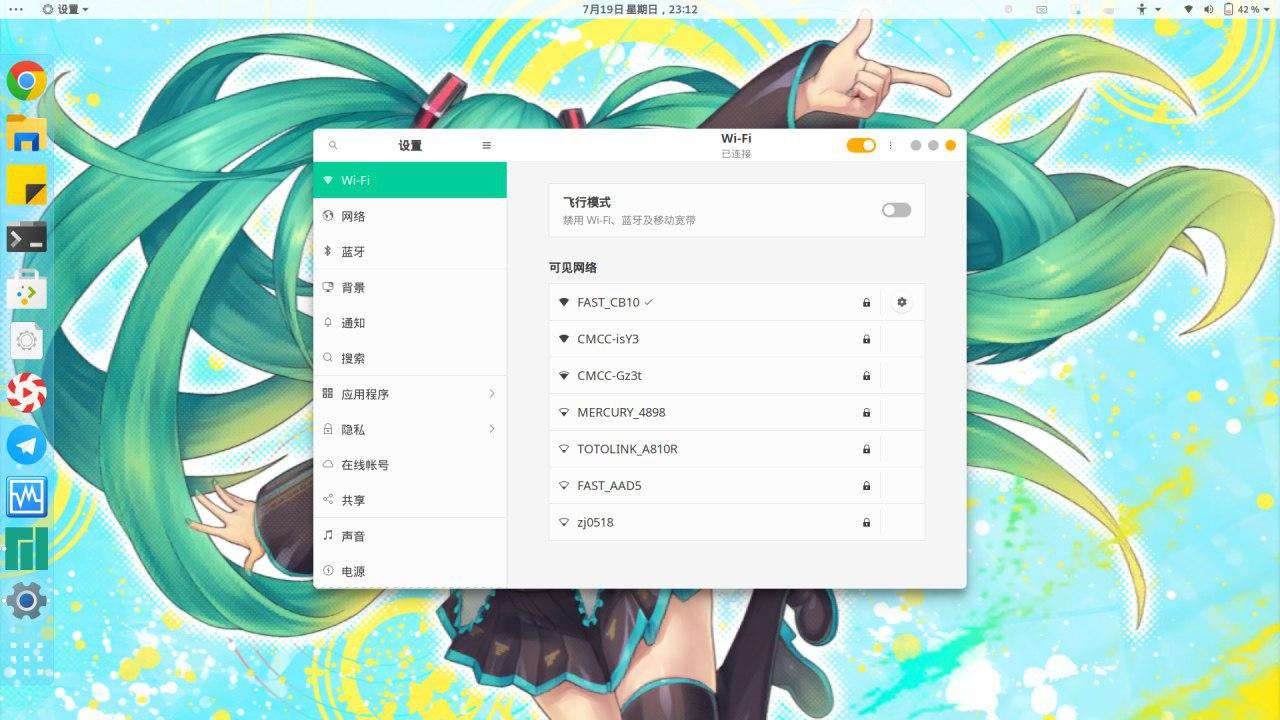
$ sudo cp board.bin /lib/firmware/ath10k/QCA6174/hw3.0/board.bin$ sudo cp firmware-4.bin /lib/firmware/ath10k/QCA6174/hw3.0/firmware-4.binThen reboot the system, and WiFi should work.
Conclusion
The above content is based on the solution process for the Redmibook 14 and may not apply to other devices. It is for reference only.