Finishing 'Linux Network Operating System Application Basics' in One Day

Preface
Long time no see, I’ve missed you all.
School started recently, and I’ve been busy — haven’t updated the blog in a while.
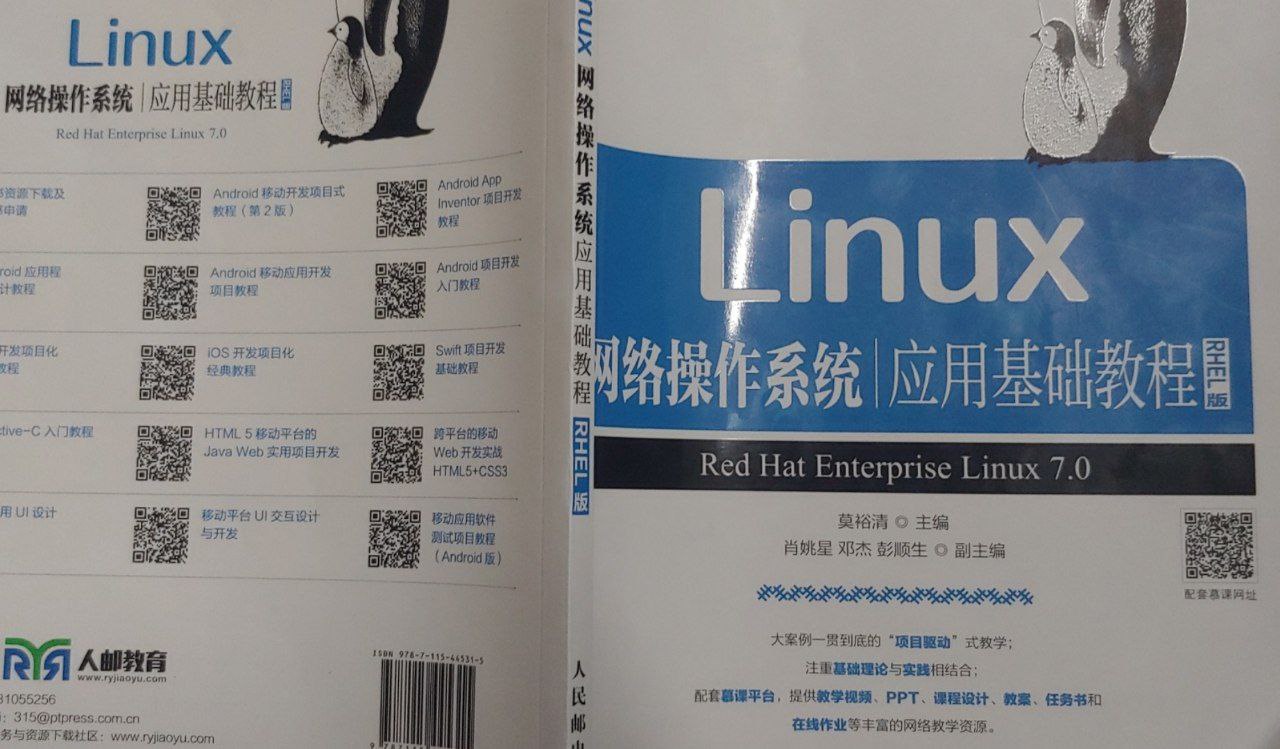
In the textbook, I came across this book (pictured above) called “Linux Network Operating System Application Basics.” At first glance, the cover looks nice — the simple color scheme gives it a premium feel… However, after flipping through a few pages, I realized it’s a basic-level book.
For someone who’s been using Arch for two years and doesn’t like reading books, the content in this book should be quick to learn.
With a “let’s give it a try” attitude, I wanted to finish this book in one day.
Full Table of Contents
First, let’s look at the table of contents. I almost laughed out loud.
Clearly, these are indeed some basic topics. I’ve encountered a large part of them during my two years of Arch usage.
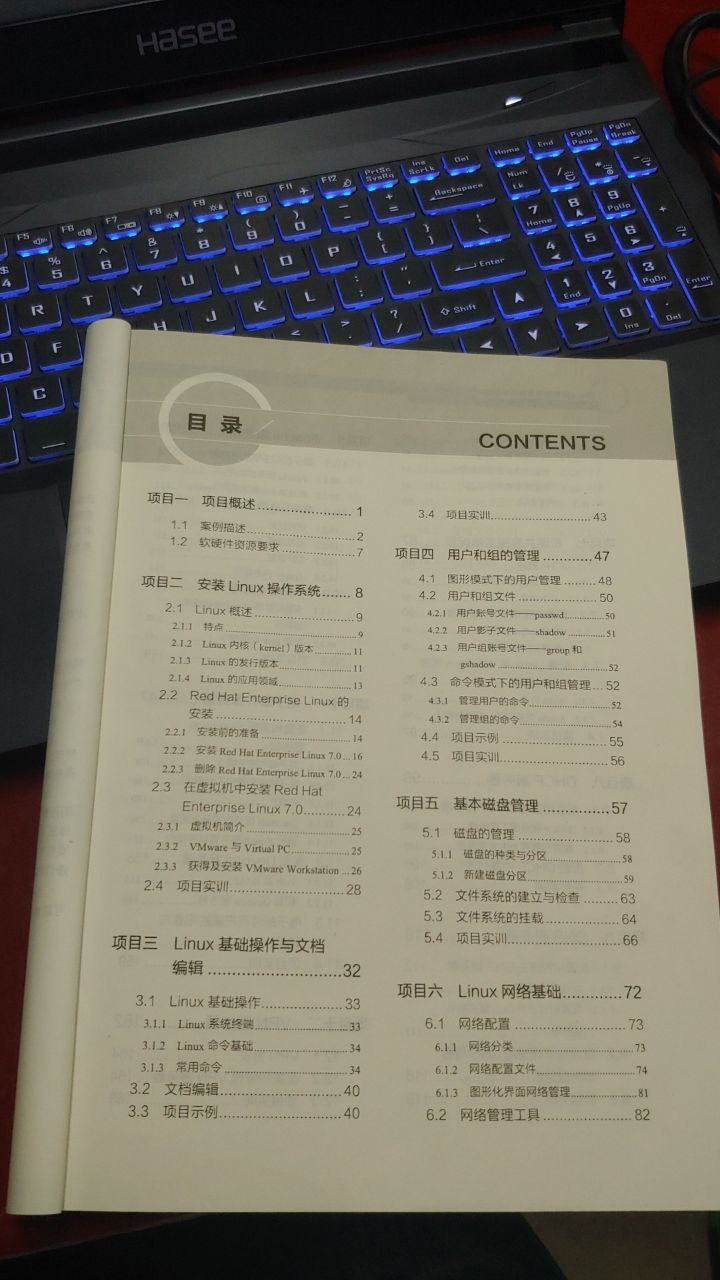
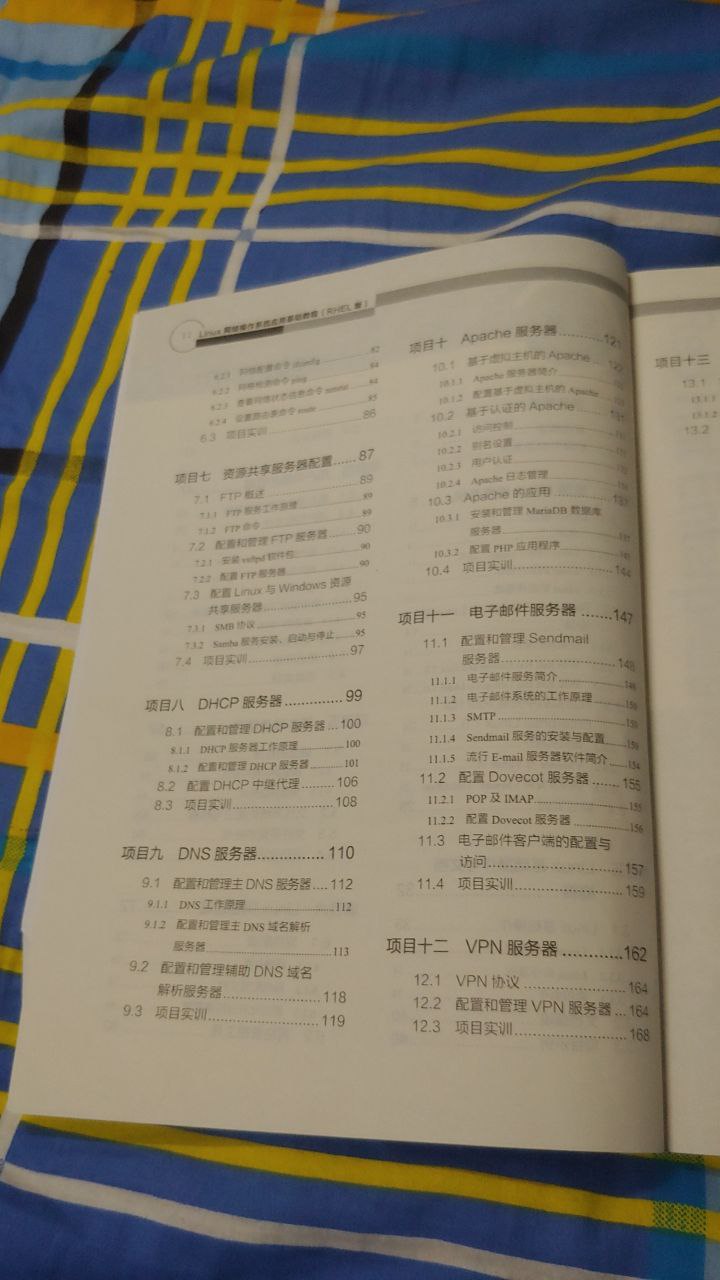

Looks like a mix of concepts + basics + practical operations.
Conceptual Content
Roughly projects 1 through 2.1, covering Linux use cases, history, and popular distributions.
The book doesn’t mention Arch — bad review.
But it does describe how Linux can run various services, like DNS (Domain Name System) services, Web servers (Apache Nginx — those providing HTTP-based web services), SMTP-based mail servers, FTP-based file transfer servers, Samba-based file sharing servers, DHCP servers, and VPN servers.
In short, it talks about what Linux can do, its advantages, etc. — things you can find through search engines, so I won’t elaborate.
Practical Content
After that, it’s all operational content, like installing Linux and setting up various services.
Installing Linux OS
The book talks about using VMware to install a CentOS virtual machine.
I learned that in high school — skip.
Linux Basic Operations
For basic operations, I actually wrote some basic command notes back in middle school.
The book also introduces two ways to open a terminal — opening it in the GUI, or pressing Ctrl + Alt + (F1~F6) to switch to a tty.
Then there are commands, mostly Chinese translations with the -h parameter. For those who aren’t good at English, flipping through it when needed is a pleasant experience.
I also need to supplement some commands that weren’t in my middle school article.
cat
Outputs the content of a file. The book’s usage is:
cat [options] [filename]But our usual usage is:
cat [filename]Nothing special here — it’s commonly used. But it’s not ideal for very long text.
less and more
I’ve hardly seen anyone use more. The usage is the same, but the effects might differ.
more [options] [filename]less [options] [filename]Generally, we don’t add any options…
head and tail
Nothing special here either — same parameter usage, though the former looks at the head, the latter at the tail.
head [option] [filename]tail [option] [filename]Options:
-n num— display the lastnumlines of the file-c num— display the lastnumcharacters of the file
rmdir
Used to delete directories. The directory must be empty.
Otherwise, it’ll report an error. Like mkdir, you can add -p for recursive deletion.
What does recursive mean? It means deleting level by level.
rmdir [option] [filename]But I don’t usually like using this — I prefer rm -r or rm -rfv.
touch
The touch command can generate a regular file.
touch [filename]grep
Used to find lines in a file that contain a specified string. Commonly used.
grep [options] [search string] [filename]tar
I usually use tar just for extraction:
tar xvf [filename]But it’s actually a packaging command, equivalent to compressed archives.
tar [options] [archive file] [file list]-c— create an archive file-v— list the detailed process of archiving/de-archiving-f— specify the archive file name-r— append files to the end of an archive-z— compress or decompress in gzip format-j— compress or decompress in bzip2 format-d— compare the archive with files in the current directory-x— extract an archive file
You can use man to view more information about tar:
man tarrpm
The offline package installer for RPM-based distributions. At least, that’s how I understand it.
rpm [options] [package name]The package name refers to a filename — files ending with .rpm are RPM packages.
Installing goes like this:
rpm -i [package name]Other parameters:
-v— display detailed information during installation-h— display#progress bar during installation-e— delete a package-q— check if a package is installed
You can also read the manual with man:
man rpmNowadays, everyone uses package managers like yum or dnf to install and manage packages from remote repositories.
Document Editing
For document editing, you need vi or vim.
This is also common:
vim [filename]I normally just use i to edit, ESC to exit edit mode, :w to save, and :q to exit.
Sometimes I need to add ! to force execution.
Save and exit is :wq.
If I have other needs, I use man to read the documentation:
man vimUser and Group Management
Something you do when installing Arch — adding users with useradd.
Desktop systems often don’t use the root user and will add one or more regular users.
Some servers deployed for multi-person collaboration also utilize Linux’s multi-user features.
useradd
This command is used to add users:
useradd [options] usernameFirst, let’s list the parameters:
-m/--create-home— create the user’s home directory/home/[username]; within your own home directory, even non-root users can read/write files and install programs.-G/--groups— list of supplementary groups for the user to join; separate multiple groups with commas, no spaces; if not set, the user only joins the initial group.-s/--shell— the path to the user’s default login shell; sets the default login shell after startup; make sure the shell is installed, default is Bash.
For example, if I want to create a user named weepingdogel on a new machine with a home directory /home/weepingdogel, and add them to the wheel group, with the default shell set to Bash:
useradd -G wheel -m -s /bin/bash weepingdogelWhat if I want zsh?
useradd -G wheel -m -s /bin/zsh weepingdogelJust like that~
userdel
This command is used to delete users:
userdel [options] usernameAdding -r will also delete the user’s home directory:
userdel -r usernamegroups
This command is used to view which groups a user belongs to:
groups [username]Of course, we can also view all groups by checking /etc/group:
cat /etc/groupid
This command displays additional user information, such as UID, GID, etc.
id [username]groupadd and groupdel
The former creates a new group, the latter deletes a group.
Create a new group:
groupadd [groupname]Delete a user group:
groupdel [groupname]groupmod
Often used to change the name of a group a user belongs to, without changing the GID.
groupmod -n [new name] [old name]gpasswd
Often used to change which group a user belongs to.
For example, adding a user to a group:
gpasswd -a [username] [groupname]Or removing a user from a group:
gpasswd -d [username] [groupname]Some Related File Lists
/etc/shadow— stores user security information/etc/passwd— user account information/etc/gshadow— stores group account security information/etc/group— defines which group a user belongs to/etc/sudoers— users who can run sudo/home/*— home directories
Make sure to remember them well.
Basic Disk Management
This also involves disk management, which comes up a lot when installing Arch.
Viewing Partitions
When Linux recognizes a disk, it assigns it as a block device, which is a file in the system — like /dev/sda, /dev/nvme0n1, or /dev/mmcblk0. You can use lsblk or fdisk to view:
fdisk -lCreating/Editing Partitions
You can search for fdisk instructions online to create and edit partitions, or use the simpler cfdisk.
You can even use the graphical partitioning tools that come with some distributions.
Formatting
After creating partitions, you need to choose an appropriate filesystem and format.
Linux often uses EXT4.
Use mkfs:
mkfs.ext4 /dev/partitionMount a partition:
mount [partition to mount] [mount point]Of course, you can also write /etc/fstab for automatic mounting.
Resource Sharing Services
FTP
Setting up an FTP server.
First, use the package manager to install vsftpd:
deb:
sudo apt install vsftpdcentos:
sudo yum install vsftpdConfigure by editing /etc/vsftpd.conf.
For example, allowing anonymous login and passwordless login:
anonymous_enable=YES
no_anon_password=YES
Then start it with systemd:
sudo systemctl start vsftpdConnect with a client.
Samba
Not touching that — too dangerous.
DHCP Server
Just install dhcpd:
deb:
sudo apt install dhcpdcentos:
yum install -y dhcpdpacman:
sudo pacman -S dhcpdWrite the config file /etc/dhcpd.conf:
# No DHCP service in DMZ network (192.168.2.0/24)
subnet 192.168.2.0 netmask 255.255.255.0
Then start the service with systemd:
sudo systemctl start dhcpd4DNS Server
Can’t be bothered — it’s not difficult.
Apache Server
This one’s simple.
deb:
sudo apt install apache2pacman:
sudo pacman -S apacherpm:
sudo yum install -y apache2Just start the service:
sudo systemctl start httpdThen visit http://127.0.0.1:80.
Summary
What a garbage book!
It’s simple, but too old — it doesn’t keep up with the times.
Better to find your own resources online — that’s faster.